Crop & resize
Trim to any region with a draggable crop box and fixed-ratio presets, then resize to the exact pixels you need.
 useSignal
Image Editor
Use a browser-native editor to crop, rotate, flip, resize, and adjust images, then export them locally without uploading files anywhere.
Runs entirely in your browser — edit and export images without sending them to a server.
Runs locally • Saves automatically • Share via link
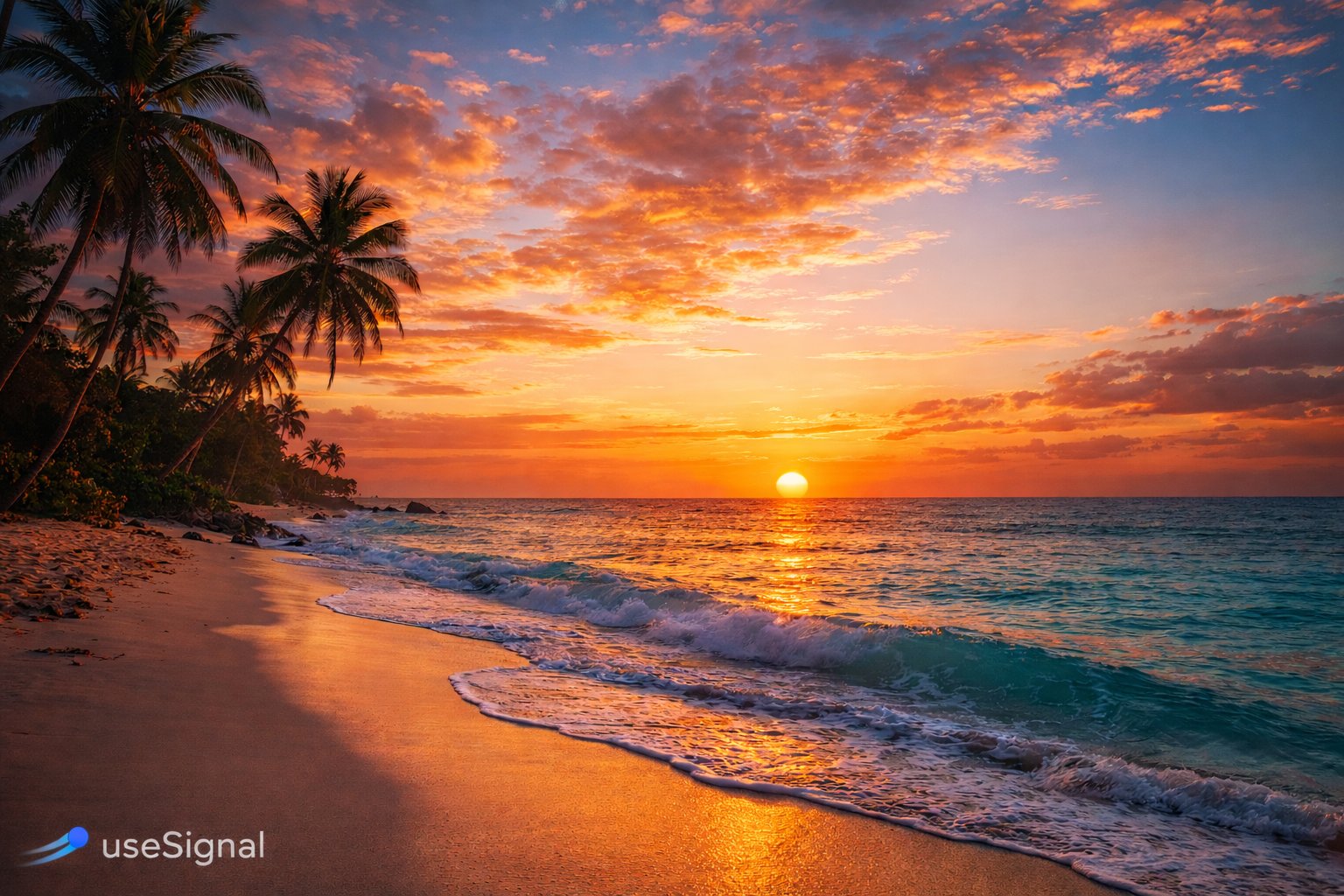
Everything runs in your browser. Your image is never uploaded.
Core benefits
Trim to any region with a draggable crop box and fixed-ratio presets, then resize to the exact pixels you need.
Straighten orientation with 90° rotations and horizontal or vertical flips, without re-uploading anywhere.
Tune brightness, contrast, saturation, and grayscale live, then export as PNG, JPEG, or WebP.
Use a browser-native editor to crop, rotate, flip, resize, and adjust images, then export them locally without uploading files anywhere.
Why use it
Crop to a precise region or a fixed aspect ratio without installing software.
Rotate and flip to fix orientation in a couple of clicks.
Adjust brightness, contrast, saturation, and grayscale with a live preview.
Resize to exact pixel dimensions and export as PNG, JPEG, or WebP.
How it works
Drop in a local image or open the sample to start.
Crop, rotate, flip, and adjust until the image looks right.
Export the edited image locally, then optimize it if you need a smaller file.
Use cases
FAQ
No. The Image Editor is browser-native, so cropping, rotating, adjusting, and exporting all happen locally in your browser.
You can crop, resize, rotate, flip, and adjust brightness, contrast, saturation, and grayscale, then export the result.
You can export edited images as PNG, JPEG, or WebP, with a quality control for JPEG and WebP.
The Image Editor changes how an image looks (crop, rotate, flip, adjust), while the Image Optimizer focuses on reducing file size. They pair well together.